
Overview
Just a heads up, we are still in Beta. So some features are not yet available, there are a few ruff edges, and please excuse some older screenshots. If you find an issue or have a suggestion, please report it at our support portal. The bookmarklet makes adding bookmarks as easy as clicking a button. Head to Adding bookmarks page for install instructions. Mobile users should check the Progressive Web App (PWA) for adding bookmarks.
Bookmark Squirrel is a bookmark manager built for people who squirrel away a lot of bookmarks and want to find them again. It focuses on easy organization, advanced search, and a clean interface. If you are a power user, someone that has a lot of bookmarks, or needs easy access to bookmarks across different browsers or different machines, this site is for you.
Bookmark Squirrel uses a flatter organizational structure, instead of folders and a lot of subfolders. Think of index cards laid out on pages. Bookmarks are organized into topics, and topics are organized into groups. The goal is to keep the hierarchy simple and make topics easy to scan. You are making several smaller related lists; lists that are important and you are using frequently. The rest, at least for me, I tend to do quick searches using tags to find them. The Grid is a great place to see a large number of bookmarks and filter through them quickly.
Features
- By using Groups and Topic cards, you can make yourself a quick reference view of your bookmarks.
- Using tags makes it easy categorize bookmarks, and makes to finding them later in Advanced Search or The Grid view.
- Hidden bookmarks are not shown in a group, topic or search results unless you select the Show Hidden checkbox in your user menu. Hidden bookmarks are a great way to keep bookmarks out of your current view while still retaining them in Bookmark Squirrel. For example to keep game items out of view when at work.
- Import bookmarks from other browsers, or a CSV file.
- Share a group page and optionally password protect it.
- You can install our Progressive Web App (PWA) to save bookmarks on mobile devices.
Interface
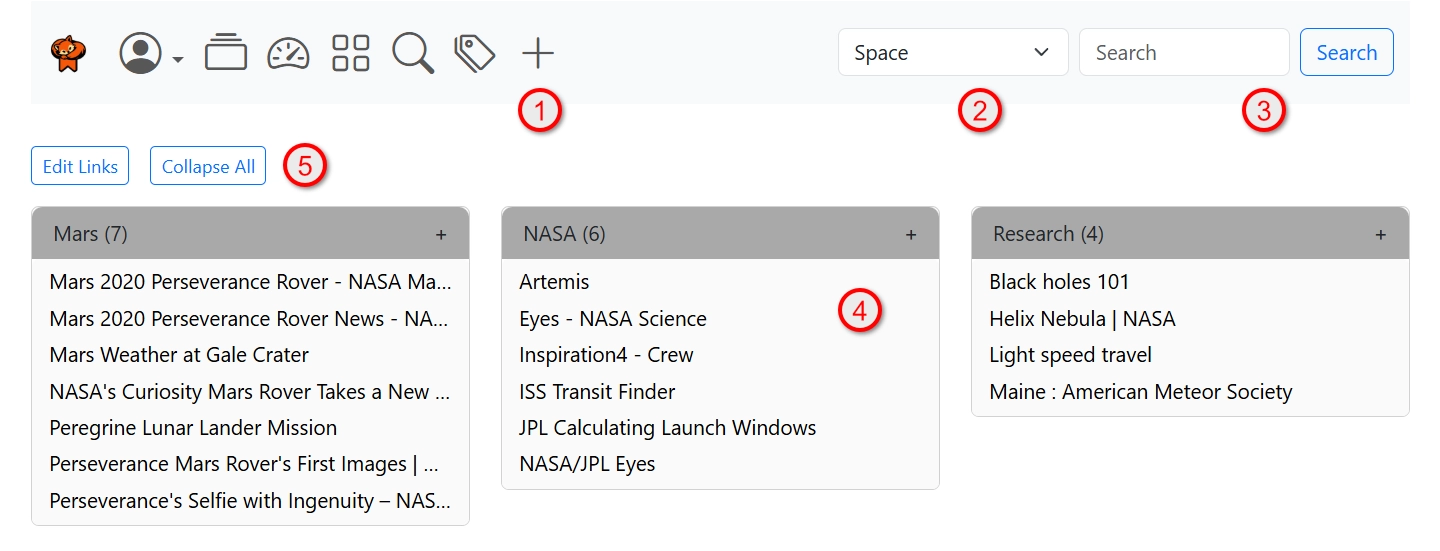
#1 Icon bar contains a number of icons for navigating the interface and accessing your User menu.
#2 Group dropdown jumps right to the selected group.
#3 Quick search allows you to search for something by name or tag. Type in what you want to search for and click the Search button.
#4 Topic card is a collection of bookmarks. The topic cards are sorted alphabetically, shows the topic name, and the number of bookmarks in that topic. When you click the edit button in the icon bar, you can drag topics to change their order, and drag bookmarks in or between topic cards to change where they are. See Reordering Topics and Bookmarks.
#5 Edit Links and collapse/expand buttons. Click the Edit Links button to edit topic names, and bookmarks. Once done editing, click the Done button. When editing a topic name, you can also change the group it is located in. When editing a bookmark, you can change the group and topic it is located in, as well as delete the bookmark.
The Collapse All button will collapse all topics, or expand them all. A great way to get a quick overview of all your topics when you have a large number of them.
Icon bar
| Icon | Description |
|---|---|
 |
User menu gives you access to your Account, Settings, Help, Import, Export, Logout and toggles for Always Expand and Show Hidden. |
 |
Groups will navigate to the last group page you had open. |
 |
Dashboard shows your most recent, and most frequently used bookmarks, your custom bookmark searches. |
 |
The Grid is your bulk-editing command deck for bookmarks. Select multiple bookmarks, then run actions across the whole set, like assigning and removing tags, or reassigning bookmarks to a new group and topic. |
 |
Advanced Search gives you a way to search by terms, not include words, and tags. |
 |
Tagilious Search is the view into what tags you have, and how many bookmarks contain the tag. Click or type in a tag name and click search to search by that tag. |
 |
Add Bookmark allows you add a bookmark manually. I'd recommended you use the bookmarklet. Find out how to install it in Adding bookmarks. |